
Extend Salesforce Team Members
to Any Object
Extend Salesforce Team Members to any standard or custom object. Automatic sharing, temporary access, and full configuration — no code required.

Features
Everything you need to extend Salesforce team collaboration beyond Account Teams.
Universal Object Support
Extend team collaboration beyond Accounts to any standard or custom Salesforce object. Works with Opportunities, Cases, Leads, Campaigns, Orders, and custom objects.
Automatic Record Sharing
When you add a team member, FTS automatically creates the correct Salesforce share record. Remove a member, and the share is revoked. No manual sharing rules needed.
Temporary Access with End Dates
Grant time-limited team membership with automatic expiration. A daily cleanup job revokes access when the end date passes — ideal for contractors, auditors, or project-based work.
Owner Synchronization
Keep the team's Owner role in sync when record ownership changes. Works with both Salesforce Flow and Apex Triggers.
Flexible Configuration Wizard
Admins configure which objects support team members through a point-and-click wizard. No code required. Activate or deactivate objects without losing data.
Multi-Language Support
Built-in support for 29 languages with custom labels and internationalization, ready for global teams.
Simple, Transparent Pricing
Start free with one object. Upgrade as your team collaboration needs grow.
Enterprise
Real-World Use Cases
See how teams across your organization use Flexible Team Share to collaborate more effectively.
Cross-functional Deal Teams
Sales ManagerSupport engineers, solution architects, and legal reviewers need visibility into Opportunity details but lack access.
Add them as team members on Opportunities with Read/Write access, ensuring everyone sees the latest deal updates.
Temporary Contractor Access
Project ManagerExternal consultants need access to project records for a limited engagement period.
Grant Read/Write access to a custom Project object with a 90-day end date. Access is automatically revoked when the engagement ends.
Case Escalation Visibility
Support ManagerSenior engineers need immediate visibility into escalated cases without changing ownership or creating sharing rules.
Add senior engineers to the Case team. They get immediate visibility without disrupting existing case ownership.
Campaign Collaboration
Marketing DirectorRegional managers need to track campaign performance and update local activities without Campaign ownership.
Assign regional managers as team members on Campaign records so they can track and update without needing ownership.
Audit and Compliance Reviews
Compliance OfficerCompliance officers need temporary access to Order records during quarterly reviews.
Grant temporary Read Only access to Order records. Access expires automatically after the review period.
How It Works
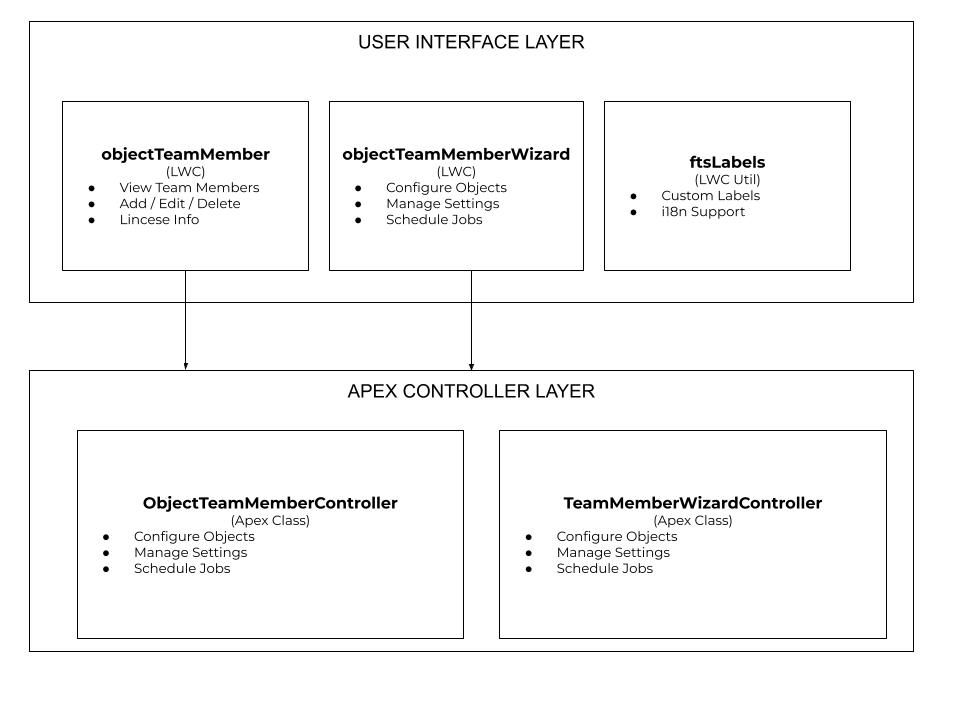
Flexible Team Share uses a two-layer architecture: a configuration layer that admins control through a wizard, and a runtime layer that automatically manages Salesforce sharing records.
Frequently Asked Questions
Everything you need to know about Flexible Team Share.
Which Salesforce objects does FTS support?
FTS works with any standard or custom object that supports sharing — including Opportunities, Cases, Leads, Campaigns, Orders, and your own custom objects. You choose which objects to enable through a point-and-click Configuration Wizard.
How does automatic record sharing work?
When you add someone as a team member, FTS automatically creates the appropriate Salesforce share record with the access level you specify (Read Only or Read/Write). When you remove a member, the share is revoked instantly. No manual sharing rules or Apex code required.
Can I grant temporary access that expires automatically?
Yes. Each team membership can have an optional end date. A daily scheduled job checks for expired memberships and automatically revokes access — ideal for contractors, auditors, or project-based collaboration.
What happens when a record owner changes?
FTS keeps the Owner role on the team in sync with the actual record owner. This works automatically via Salesforce Flow or Apex Triggers, so the team always reflects the current ownership.
Is any code required to set up FTS?
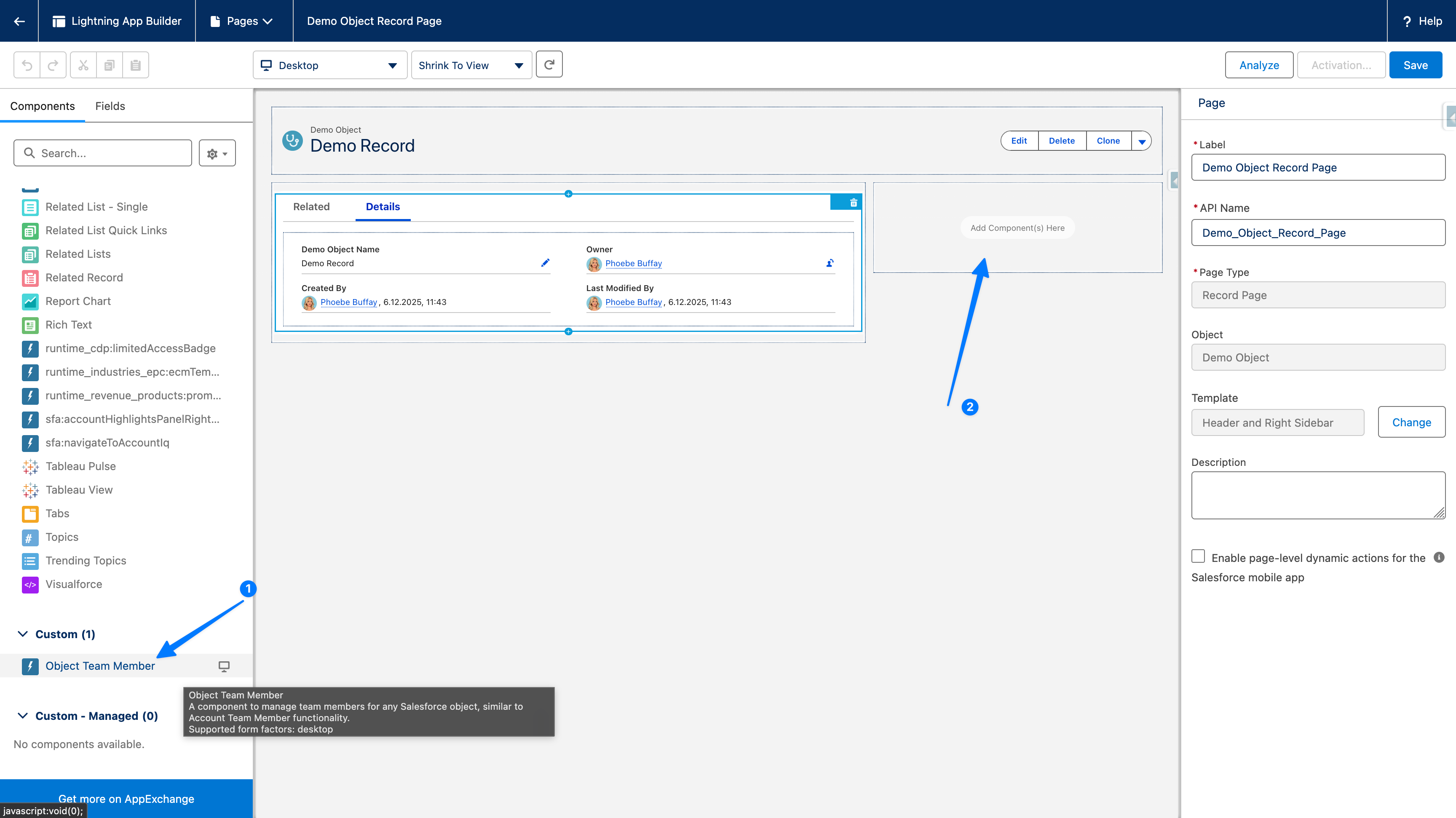
No. Installation is done from AppExchange, configuration uses a built-in wizard, and the team member component is added to Lightning pages via drag-and-drop in the Lightning App Builder. The entire setup is clicks, not code.
What are the differences between Free, Pro, and Enterprise?
The Free plan supports 1 configured object with up to 10 teams and 3 members each. Pro expands to 5 objects, 100 teams, and 10 members. Enterprise removes all limits. You can start with Free and upgrade at any time without losing your configuration.
Does FTS support multiple languages?
Yes. FTS includes built-in support for 29 languages through Salesforce custom labels and full internationalization, so your global teams see the interface in their own language.
Will deactivating an object lose my data?
No. You can activate or deactivate objects in the Configuration Wizard at any time. Your existing team member data is preserved — deactivation simply hides the functionality until you re-enable it.
What permissions do users need?
Administrators need the FTS Admin permission set to configure objects. End users need the FTS User permission set to view and manage team members. Both are assigned via Permission Set Groups included with the package.
Where can I get support?
You can reach us at support@tucario.com for technical questions or hello@tucario.com for general inquiries. We also provide documentation within the Salesforce app itself.
Ready to Extend Team Collaboration?
Install Flexible Team Share from AppExchange and start sharing records across any object in minutes.
Get Started Free